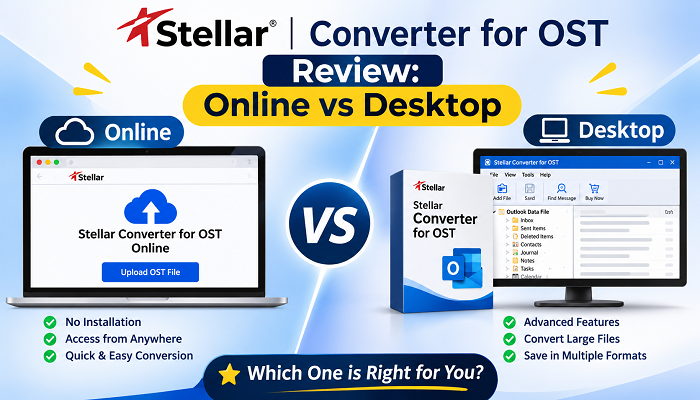
Stellar offers two ways to convert an OST file into a PST: a quick browser tool for small jobs and a full desktop application for serious conversion work. This review covers both, and explains who should pick which.
When only the OST file remains
Picture the situations every IT team has faced. An Outlook profile becomes corrupted and the mailbox cannot be opened. The Exchange server is unavailable, but emails still need to be accessed. Or a Microsoft 365 account was removed while the OST data still exists on disk.
In each case the mail is there, but it is out of reach. That gap is exactly what Stellar Converter for OST is built to close.
Why OST files are difficult to open
An OST file is Outlook’s offline cache of a mailbox. Unlike a PST, it cannot normally be opened directly. Microsoft Outlook needs the original profile and account association, so once the account is deleted, the profile is corrupted or the server is gone, the file is effectively locked.
That is why OST to PST converter is necessary. A PST opens in any Outlook installation, so the mailbox can be imported, archived or handed over. Understanding this limit also explains why a dedicated converter, not Outlook itself, is the practical way out.
The online ost to pst converter: fast and simple
Online OST to PST Converter by Stellar runs entirely in the browser. There is nothing to install, Outlook is not required, and conversion is quick. That makes it easy to try on any machine, including one that has never had Outlook on it.
It suits small OST files, one-file conversions, non-technical users and anyone who just needs fast access to a mailbox. The workflow is short:
- Sign up with your email address.
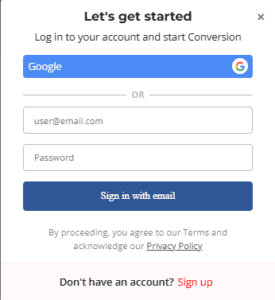
- Open the online ost to pst converter and upload the OST file.
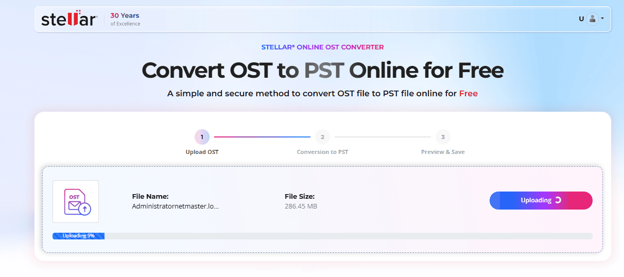
- Let the conversion run in the browser.
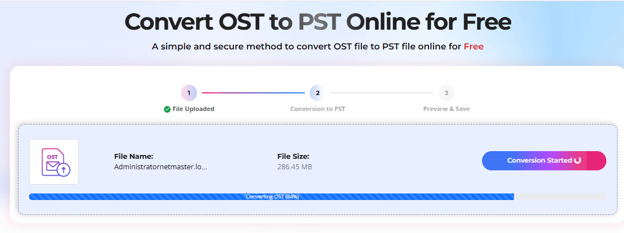
- Preview the HTML file & Download the resulting PST.
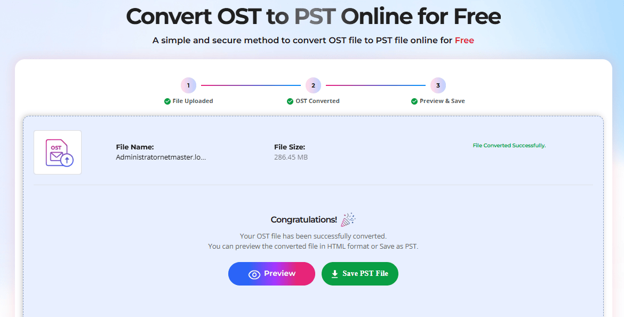
- Open the PST in Outlook through File > Open & Export > Open Outlook Data File.
The trade-off is control. The online tool offers html only preview, you can see complete mailbox with folder hierarchy & number of elements each folder contains.
Where the desktop tool takes over
The online converter works well for quick conversions. However, IT administrators often deal with larger mailboxes, multiple OST files, compliance requirements, mailbox verification and large data conversion scenarios. That is where the desktop solution, Stellar Converter for OST, becomes more practical.
OST discovery. The software can find OST files on the system automatically, or you can select a file manually. Automatic search helps when you do not know which profile held the mailbox. Manual selection is handy when the file was copied from a retired machine or an external drive.
Mailbox preview. This is the feature that sets the desktop tool apart, and few competing converters handle it well. Before anything is exported, you can browse emails, contacts, calendar entries and attachments inside the OST. You confirm that the right mailbox is loaded and that the data you need is intact, instead of converting blindly and finding out afterwards.
For an IT team this changes the workflow. A preview turns conversion from a leap of faith into a checked step, which matters when a mailbox belongs to a former employee, sits under a compliance request or has to be handed to a legal team. If the preview shows the wrong profile or missing folders, you find out before spending time on an export.
Five features that matter in practice
Rather than a generic feature list, these are the capabilities worth testing and the reason each one counts.
- Preview before conversion. Verify the mailbox contents before exporting. For an administrator handling a departed employee’s data, this removes guesswork and avoids repeat conversions.
- Selective conversion. Convert only specific folders rather than the whole mailbox. It saves time and storage, particularly when only a project folder or the Inbox is needed.
- Large OST support. Enterprise mailboxes can be big, and the desktop application is meant to handle them where a browser upload becomes awkward.
- Folder structure maintained. After conversion, the Inbox, Sent Items and custom folders should appear in the PST as they were in the source. Check this in Outlook once the file is opened.
- Deleted mail recovery. Where the edition being used supports it, the tool can bring back deleted items. This is highly attractive to IT admins working on recovery and compliance requests, so confirm it is included before you buy.
Online vs desktop at a glance
The two tools solve different problems. The online converter is built for speed and the desktop version for depth.
| Online converter | Desktop converter |
| Quick conversion | Advanced conversion |
| Browser-based | Installed application |
| Small jobs | Enterprise scenarios |
| Basic requirements | Advanced requirements |
| HTML preview | Full preview |
Verdict: who should use which
Stellar Converter for OST covers both ends of the need, and the right choice depends on the size and risk of the job.
Choose the online tool if you are:
- A home user
- Doing a one-time conversion
- Working with a small OST file
Choose the desktop tool if you are:
- An MSP or consultant
- An IT administrator, Exchange admin or Microsoft 365 admin
- Part of a legal or compliance team
- A user with a large mailbox
My recommendation: start with the online converter on a small file to see the workflow, and move to the desktop version once you need detailed mailbox preview, selective export, large-file handling or deleted mail recovery.
Final thought: The two versions serve different needs. The online tool is ideal for quick and simple tasks, while the desktop version offers more options to verify, select, and convert data. The right choice depends on how much data you need to convert and how important that data is.